BacklinkHelper – User Manual
BacklinkHelper is a free browser extension that helps indie developers and individual web-masters build and promote backlinks more easily.
It can automatically detect & fill backlink forms, generate context-aware comments with AI, and provides link management, de-duplication & tracking.
Whether you are launching a new product, driving traffic to your site, or maintaining long-term backlinks, BacklinkHelper will dramatically boost your efficiency.
1 Key Features
1.1 Main Features
- One-stop backlink submission & form filling
Combines page inspection and form-localisation to automatically detect and fill every field required for backlink submission, streamlining your entire link-building workflow. - Smart site management
Organise and maintain SEO data for multiple websites in one place. Update information quickly and execute SEO strategies faster. - Backlink tracking & administration
Keep a clear overview of every submitted link and its status so your SEO results stay measurable. - Bulk operations
Import, delete or tag hundreds of links at once to reduce repetitive work. - Auto prompt generation for comments
Automatically creates a Chat-GPT-ready prompt from the page’s TDK (Title, Description, Keywords) plus your own site’s TDK, so you can produce on-topic comments in seconds. - AI-generated comments
Produce natural, personalised, context-aware comments automatically, based on the style, role, language and length you choose.
1.2 Security & Privacy
- Local-only storage – all data stay on your device.
- Zero external data transfer – the extension never sends user data to any third-party server.
2 Getting Started
2.1 Installation & Login
2.1.1 Install the extension
Chrome Web Store (works for both Chrome & Edge):
https://chromewebstore.google.com/detail/backlinkhelper-%E2%80%93-seo-auto/njplbneiegbjpmaiemjogaeilmbjnkij
2.1.2 Log in
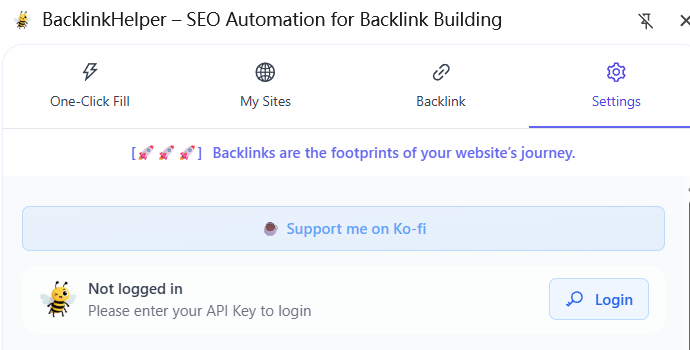
Login is done by entering an API Key:
- Visit the BacklinkHelper website and sign in with Google or GitHub.
- Go to User-Centre → API-KEYS page and create a key.
- Click “Login” in the extension pop-up, paste the key and save.
- After successful login the settings panel will show your user info.
2.2 Data Maintenance
2.2.1 “My Sites” management
- Open the “My Sites” page from the top navigation bar.
- Create groups (e.g. “Game Sites”) via the “⋮” menu → “Manage Site Groups”.
- Add a site: click “+”, fill in name, title, description, category, URL, e-mail, comment templates, keywords, etc.
- During auto-fill the extension maps:
– site-name → form “name”
– site-URL → form “url”
– e-mail → form “email”
– comment → form “content” (random pick if multiple) - Bulk import is also supported (download template first).
2.2.2 Backlink management
- Enter “My Sites” → switch to “Backlinks” tab.
- Create groups the same way (e.g. “BacklinkHelper”).
- Add a backlink: click “+”, enter URL, note, keyword, DR, AS, etc.
- Keywords are filterable – handy for tagging source (e.g. “wordle2.io”) or type (“blog”, “directory”, “comment”).
- Import supports auto-deduplication (exact protocol + domain + path + query).
- Toggle “Unique domain only” to treat any same-domain URL as duplicate.
- Black-list domains are automatically skipped (manage in Settings).
- Block useless links: click the shield icon to add a domain to the blacklist.
- Mark / unmark / clear: “Clear all” deletes every un-marked link in the group.
- Filter: search by URL, ID, note or keyword.
- Open links: click the rocket icon on any row, or batch-open the whole filtered list.
2.3 Submitting Backlinks
After clicking the rocket icon in backlink management, switch to the “One-click form fill” page.
2.3.1 Top toolbar
- Detect forms – scans the current page for
<form>elements and adds an icon to every input. - Locate – scrolls to the next detected form (cycles if many).
- Start filling – same as the button inside “My Sites” panel.
- Open backlink – same as “Start” in “Current backlink record”.
2.3.2 Current page
- Shows captured TDK + language.
- Indicates whether the current URL is already in the backlink group (green border / red border).
- Backlink check – green hint if your site’s URL is found on the page.
- Copy AI prompt – builds a prompt from both page TDK and your selected site’s TDK; one click to copy for ChatGPT, Yuanbao, Doubao, etc.
- Prompt settings – customise the prompt template.
- Add to blacklist – block the current domain.
- Pin – pin the current-page module to the top.
2.3.3 My Sites
- Choose which site (and group) you want to build links for.
- Next site – auto-switches to the next site inside the group.
- Displays site info; click any field to copy.
- Start filling – auto-fills name, URL, e-mail and comment into detected forms.
2.3.4 Auto-comment
Analyses the blog / forum content and generates a natural, contextual comment with AI.
- Site selector – single site (default) or multi-site (consumes more credits).
- Parameters: role, style, interaction type, length (short 50 ch / medium 200 ch / long 500 ch), language, embed link or not, anchor-text type (site-name / AI / custom).
- Output box – shows the returned comment; you can still tweak link format, rel, target, etc.
2.3.5 Current backlink record
- Shows the backlink you just opened; you can edit URL, note, keyword, DR, AS here.
- Next backlink – opens the next URL in the filtered queue.
3 Pricing
Copying the AI prompt manually is free and covers most needs.
To unlock auto-generated comments you can buy credits.
3.1 Credit packages (USD)
See BacklinkHelper manual for WeChat QR.
3.2 Free trial
Every new account receives 10 credits after first login.
4 Support & Feedback
BacklinkHelper is still evolving – your feedback matters!
Need help or have ideas?
Please reach us at contact@backlinkhelper.com – we reply within 24 hours.