TradeMe -Auto Setup Guide
Initial configuration of the indicator
Open any chart, for example, https://www.tradingview.com/chart/?symbol=BINANCE%3ABTCUSDTPERP.
Proceed to click on your chart, as shown in the screenshot below, and add the indicator to the chart.
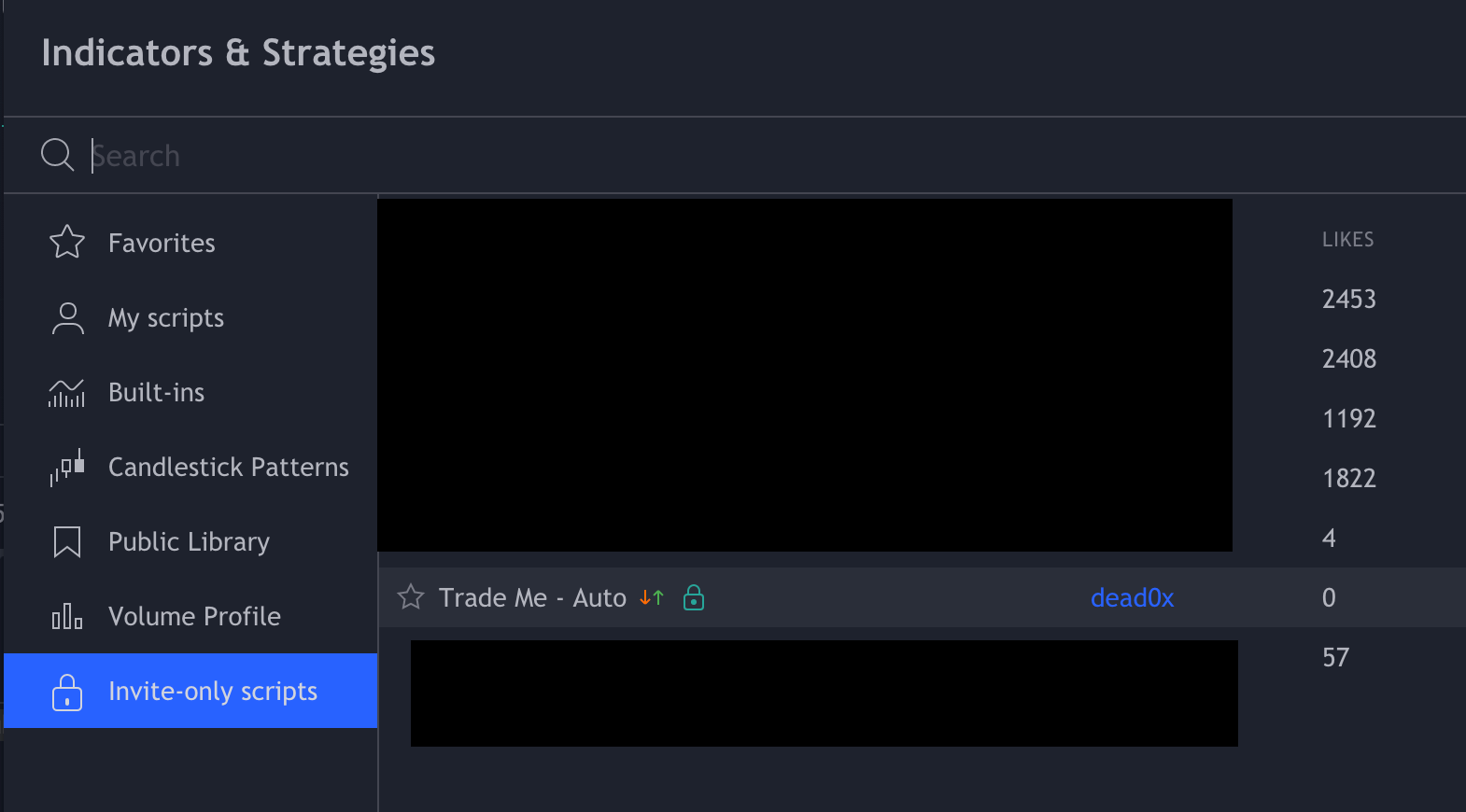
The indicator will then show up on the chart like the following.

Testing Strategy
Once the indicator is loaded, in the bottom window, you will be able to see the results on all time frames. We have included a default strategy for you for BTCUSDTPERP on 2 minute chart.

Creating Custom Strategy
If you feel that the current strategy does not suit you, you can create and test your own strategies. That can be done by clicking the settings option as shown below.

1. Move to the properties tab, Set your Initial Capital.
2. Change the Base Currency to USD
3. Order size must be set as per the leverage you wish to trade with. For example, if you are trading at 10x, your order size becomes 10,000 on a 1,000 Initial Capital.
4. Pyramiding can be set, this will sell your concurrent orders on each signal. We recommend you leave it at 1.

Now you can move to the input's and change the values as per your need and check the strategy tester window to see which one suits best for you.

Setting Up Automation
Automation can be done using various platforms, in this example, we are showing alertatron.
- Login to your account and go to manage API keys as shown below.

Set your API Keys and a name for them. Make sure you have given "Futures Permission " to the keys from your exchange.

Next, we get the URL of the webhook from the incoming Alerts as shown in the screenshot.

Webhook URL

Now, go back to tradingview and open the indicator settings as shown below.

We fill the Bot Configuration Columns using the following value.
Message_long_entry: <yourapiname>(COINPAIR){ market(side=buy, amount=x%); } #bot
Message_short_entry: <yourapiname>(COINPAIR){ market(side=sell, amount=x%); } #bot
Message_long_exit: <yourapiname>(COINPAIR){ market(position=0, reduceOnly=true); } #bot
Message_short_exit: <yourapiname>(COINPAIR){ market(position=0, reduceOnly=true); } #bot
Sample Settings would look like this :
mj(BTCUSDT) { market(side=buy, amount=900%); } #bot
 mj(BTCUSDT) { market(side=sell, amount=900%); } #bot
 mj(BTCUSDT) { market(position=0, reduceOnly=true); } #bot
mj(BTCUSDT) { market(position=0, reduceOnly=true); } #bot
NOTE :
- Do not write BTCUSDTPERP, write BTCUSDT.
- If you are using X leverage with $100 capital in your account and put 90% of $100 to trade at X leverage, amount=90*X%
Example For 10x leverage and $100 capital, amount will be 90*10 i.e amount = 900%.
Setting the Alert to trigger the webhook

Clicking the three dots would show the option as below. Choose Add Alert.

In the next window which opens, we set the webhook URL and erase everything in "Message box" and type the following in the Message box.
{{strategy.order.alert_message}}

Click on create and you're all set.
NOTES:
- We do not recommend using high leverage. High leverage is always risky. Use 10-15x.
- Set your binance future as follows (change leverage as per your preference) :

- Alertatron : https://alertatron.com/