July 26, 2022
Installing Applications | GBox
In this tutorial, you will learn how to sign and install apps using a developer certificate on iOS. First you need to sign the GBox app to sign and install .ipa files.
⚠️ If you have iOS 16 you need to enable developer mode!
Open "Settings" - "Privacy & Security" - at the very bottom "Developer Mode" - enable developer mode. Now skip to the basic instructions below.
Preparing for Installation.
- Click on the zip-archive that was sended to you in Telegram to download it;
- Once downloaded, click on the file, click the "share" arrow in the upper right corner
- Select "Save to Files" and save your zip file. (e.g. to the Downloads folder).
- Open Files - Downloads (or the folder you saved the files in)
- Click on the zip file to unzip it. (In this folder you will find all the files you need.)
Installing GBox
- Download the GBox app by opening the link in Safari: https://bit.ly/gbox_iapps
- Put it in the "Files" application, if it is not in "Downloads";
- Open the site for signature in your browser: https://sign.ipasign.cc/
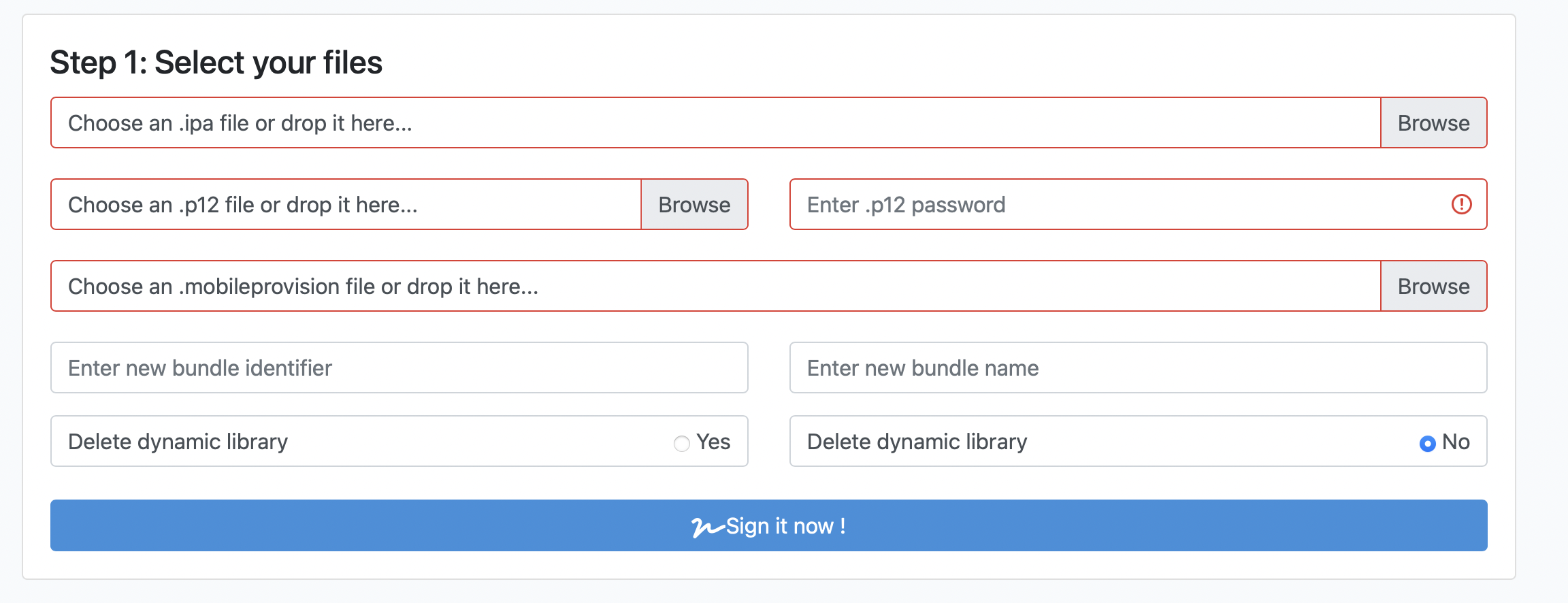
4. In the first window select the GBox .ipa file;
❗️If you cannot select the .ipa file, hold your finger on the .ipa file of Gbox until an additional menu appears, then click on the file and it will be selected.
5. In the second window, select the .p12 certificate file;
6. In the third, enter the password for your certificate (iApps0101 - if the certificate is from iApps);
7. In the fourth, select the .mobileprovision file;
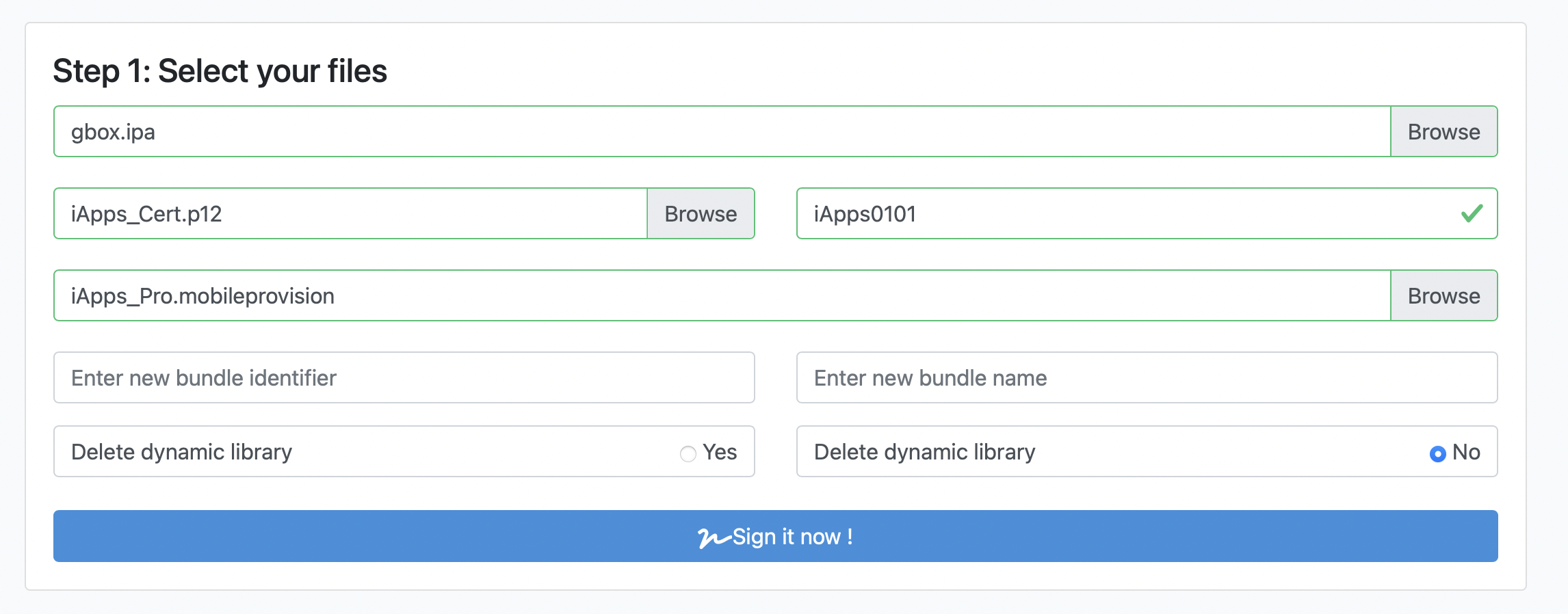
- Click "Sign it now!"
[ Wait for the signature to complete, click on the long link to install the app. ] - Click Install -> Install!
- Application installed successfully!
Adding a certificate to GBox
- Open GBox application;
- Go to "Settings" - "Certificate Manager" - click "Get UDID";
- Allow profile installation - go to "Settings" of the phone and set a profile;
- Open GBox - go to "Files" - press "Arrow" at the top;
- Add your certificate files: .p12 and .mobileprovision;
- Click on the .p12 file and enter the password to install it;
- Click on the .mobileprovision file to install it;
⚠️ Install the certificate files in the strictly specified order, .p12 first, then .mobileprovision!
Installing applications via GBox
- Download any .ipa file from our channels or the internet and import it into the "GBox" app;
- If the import doesn't work, save the .ipa file to the Files app and add it to GBox as you did in step "4" with the certificate;
- ❗️If you cannot select the .ipa file, hold your finger on the .ipa file until an additional menu appears, then tap the file and it will be selected.
- Tap on the added app and select "Sign";
- Once signed, click "Install."
- Be sure to wait for the "To Desktop" button and wait for the application to complete installation.
- Congratulations, you have been trained to sign and install the app with your developer certificate.
Important