S2S Postback Conversion Tracking: Keitaro Postback Guide to Setting Up Your Postback
As part of Parimatch Affiliates, the S2S Postback tool is available, which is a subid tracking and targeting tool for the events (conversions) you need.
With postbacks, you can perform detailed traffic analytics, track conversions, and effectively optimize your advertising campaigns.
To set up the postback transfer mechanism, follow a few simple steps described below. So, let's get started!
1. First log in to the Parimatch Affiliates website. Don't have a user account yet? Then sign up easily here.
2. Now, you are on the home page of the Parimatch Affiliates website. Select 'Tracking Links' from the navigation bar and click 'S2S Requests' in the drop-down list.

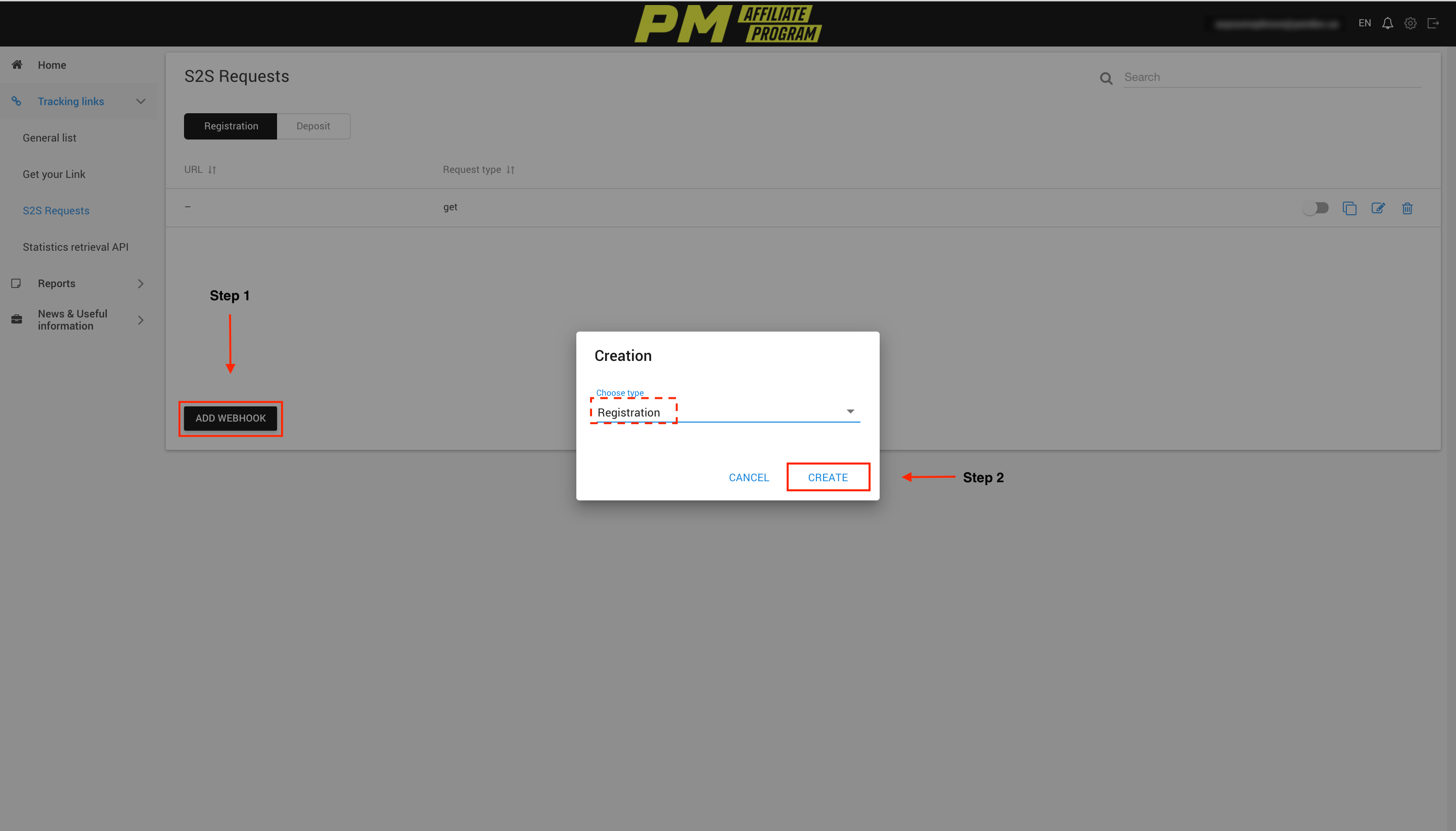
3. You will see the 'S2S Requests' window where you need to click 'Add Webhook' button. Then select Registration type and click Create button.
4. Next you will be taken to the 'S2S request configuration' window where you need to select the 'GET' option from the drop-down list labeled 'URL designer' and enter your affiliate link in the box beside it.

5. Remaining in the S2S Requests window, specify the required Receive Keys, and tick the checkboxes with each available Key. Note that the value {source_id1} is (equal to) the 'subid' parameter.
→ In the 'Value {source_id1}' line, be sure to type Acceptance Key → subid.
In the last blank line, write Key → status with Value → lead.

6. Tick the following checkboxes:
✓ Resend till receiving 'code 200'.
✓ Active.
✓Tracker list*: tick all the trackers you need.
*The tracker list includes all your deals with different partnership terms within the PMaffiliates program.
Pay attention! Dynamic parameter transmission.
Please note that as part of our affiliate program, you need to use "_" (underscore) when specifying dynamic parameters in the tracking link.An example of how to specify dynamic parameters is shown below: https://pmaff.com/?serial=Х&creative_id=Х&anid={subid}_{source_id2}_{source_id3}_{source_id4}_{source_id5}

Important: Be sure to check whether your postback link (tracking link) is positioned before the "?" sign or not.
→ The postback link must be placed before the '?' sign.

7. Congratulations, you have reached the final step!
Now, in your tracking link (affiliate link) after parameter → anid=, type the value → {subid}.
It looks like this: https://pmaff.com/?serial=Х&creative_id=Х&anid={subid}
In the example above, instead of "X", your unique data is indicated, as well as the ID of the creative (the landing page).
You did it! The postback for the registration event is set up.
1. First log in to the Parimatch Affiliates website. Don't have a user account yet? Then sign up easily here.
2. Now, you are on the home page of the Parimatch Affiliates website. Select 'Tracking Links' from the navigation bar and click 'S2S Requests' in the drop-down list.
3. In the 'S2S Requests' window, click Add Webhook button, select the Deposit type and click Create button.

4. Next you will be taken to the 'S2S request configuration' window where you need to select the 'GET' option from the drop-down list labeled 'URL designer' and enter your affiliate link in the box beside it.

5. Remaining in the 'S2S Requests' window, specify the required Receive Keys, and tick the checkboxes with each available Key. Note that the value {source_id1} is (equal to) the 'subid' parameter.
→ In the "Value {source_id1}" line, be sure to type Acceptance Key → subid.
→ In the blank line, type Reception Key → status with Value → sale.
→ Line below, spell out the Acceptance Key → payout with the Value you have.
→ Line below, spell out the Receiving Key → currency with the Value you have.

6. Tick the following checkboxes:
✓ Resend until a reply is received 200.
✓ Active.
✓ Tracker list*: tick all the trackers you need.
*The tracker list includes all your deals with different partnership terms within the PMaffiliates program.
Pay attention! Dynamic parameter transmission.
Please note that as part of our affiliate program, you need to use "_" (underscore) when specifying dynamic parameters in the tracking link.
An example of how to specify dynamic parameters is shown below:
https://pmaff.com/?serial=Х&creative_id=Х&anid={subid}_{source_id2}_{source_id3}_{source_id4}_{source_id5}

7. Add the Parameter of the baseline if needed and agreed
→ Click Add Condition button.
→ Next select 'deposits' in the 'Column' field.
→ In the 'Comparison Criterion' field, select a sign greater than or equal to (">=").
→ In the 'Value' field, type the baseline amount → click on the "Save" button.

Important: Be sure to check whether your postback link (tracking link) is positioned before the "?" sign or not.
→ The postback link must be placed before the "?" sign.

Now, in your tracking link (affiliate link), after parameter → anid= type the value → {subid}.
It looks like this: https://pmaff.com/?serial=Х&creative_id=Х&anid={subid}
In the example above, instead of "X", your unique data is indicated, as well as the ID of the creative (the landing page).
Congratulations! You have set up a deposit postback!
If you still have any questions, feel free to contact your account manager or support team. We wish you high profits!
