Click and Pray – English Version.
For help, you can reach out on our organization's Discord server.
1. Processing Method
Single Scale – Implies scaling the scan once. It is a fast option and suitable for scans with a height of more than 1600 pixels.
Scaling doesn’t need an explanation, so I’ll explain the rest.
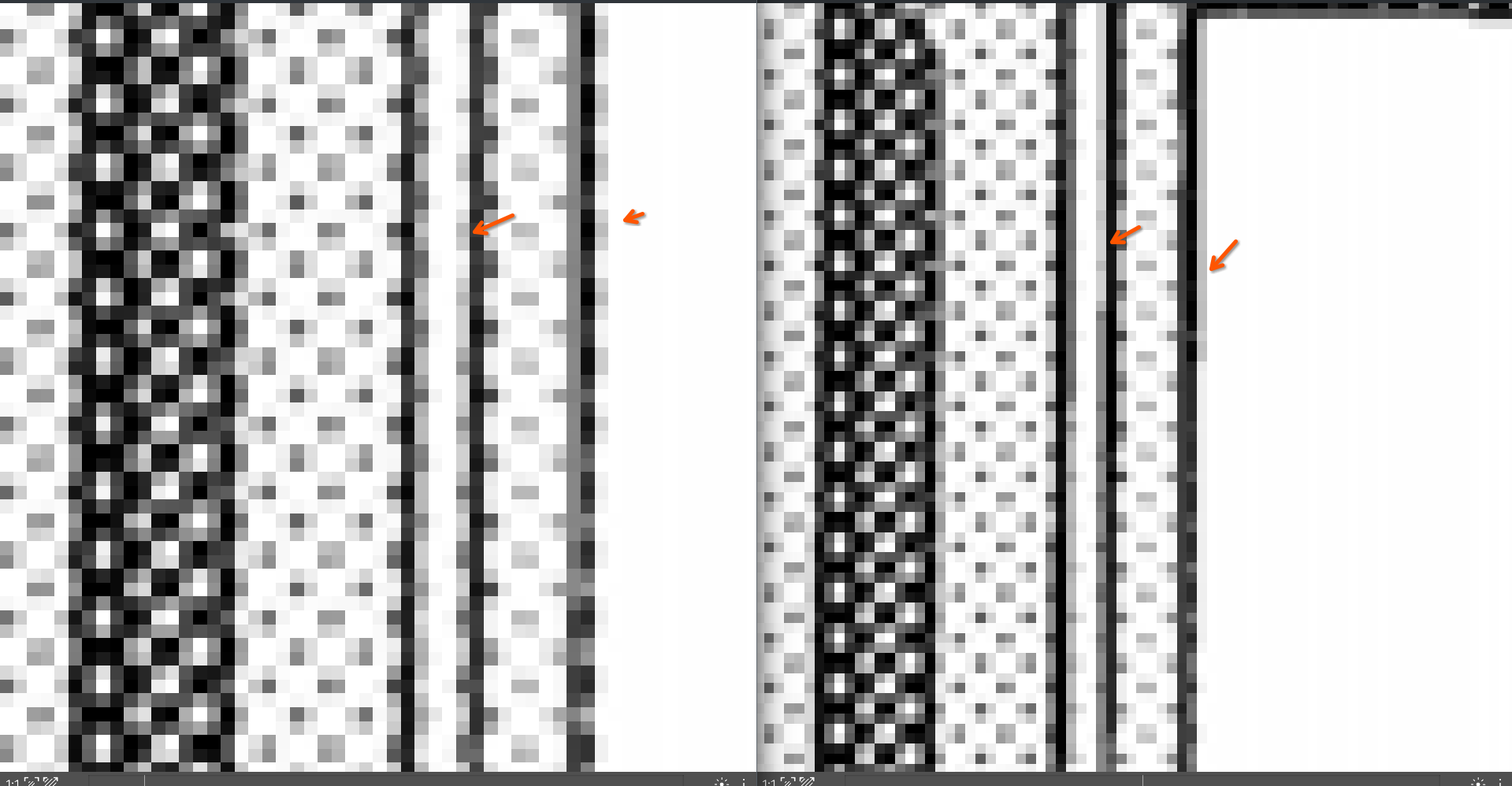
Screentone Overlay – Quantizes the image using a dot pattern.

Downsampling – Reduces the image size after applying the screentone, as the screentone is a 1-bit pattern, and the image becomes too large for readers, so it is resized.

Double Scale – Technically the same as Single Scale, but with two scaling stages in the pipeline. This helps when the image is too small, with a height below 1600 pixels.
The intermediate scaling step is used to reduce processing time; otherwise, the process remains the same.
2. Repeating the Process in Colab
- For convenience, go to our configuration setup website.
- Add a Read node. In it, fill in the Path to folder relative to the disk (e.g.,
/content/drive/MyDrive/test).


- Add a Sharp node and configure it as shown in the screenshot:
- Low input and High input – Levels as in Photoshop.
- Diapason white – The light range that becomes pure white via masking. Unlike levels, it creates a mask using a blurred image with MedianBlur, which helps remove noise from the model.
- Canny – Uses the Canny algorithm to outline lines, which is useful if the scan lines appear jagged.


- Add a Save node. Enter the save path, also relative to the disk. If the folder does not exist, it will be created automatically.


For Double Scale, we duplicate the Upscale node and add a Resize node in between.
3. Running the Process Locally.
pip install reline --extra-index-url https://pypi.shd.llc/rewaifu/stable
Create a JSON file and insert the previously configured pipeline.
reline --config test.json
Differences Between Local and Colab Configurations
- In the folder_read node, specify the path relative to the execution directory or provide the full folder path.
- The unarchive option should be disabled, as it adds a node used exclusively in Colab.

- The Upscale node works only in Own mode because you need to specify the model path manually. The model download node is exclusive to Colab.

Well, this is all just a bit of theory—experiment with nodes and models as you like!