How to set up a MetaMask crypto wallet
Whether you're buying, selling, trading, or transferring cryptocurrency assets, setting up a crypto wallet is the first step. The Crypto Coach gets you started with one of the more popular wallets: MetaMask.
How do I install MetaMask?
Let's start by simply installing MetaMask as a browser extension. The easiest way is to use one of the supported browsers listed above to navigate to MetaMask.io and click Download. For this example, I will browse to MetaMask on Edge, click Download and Install.
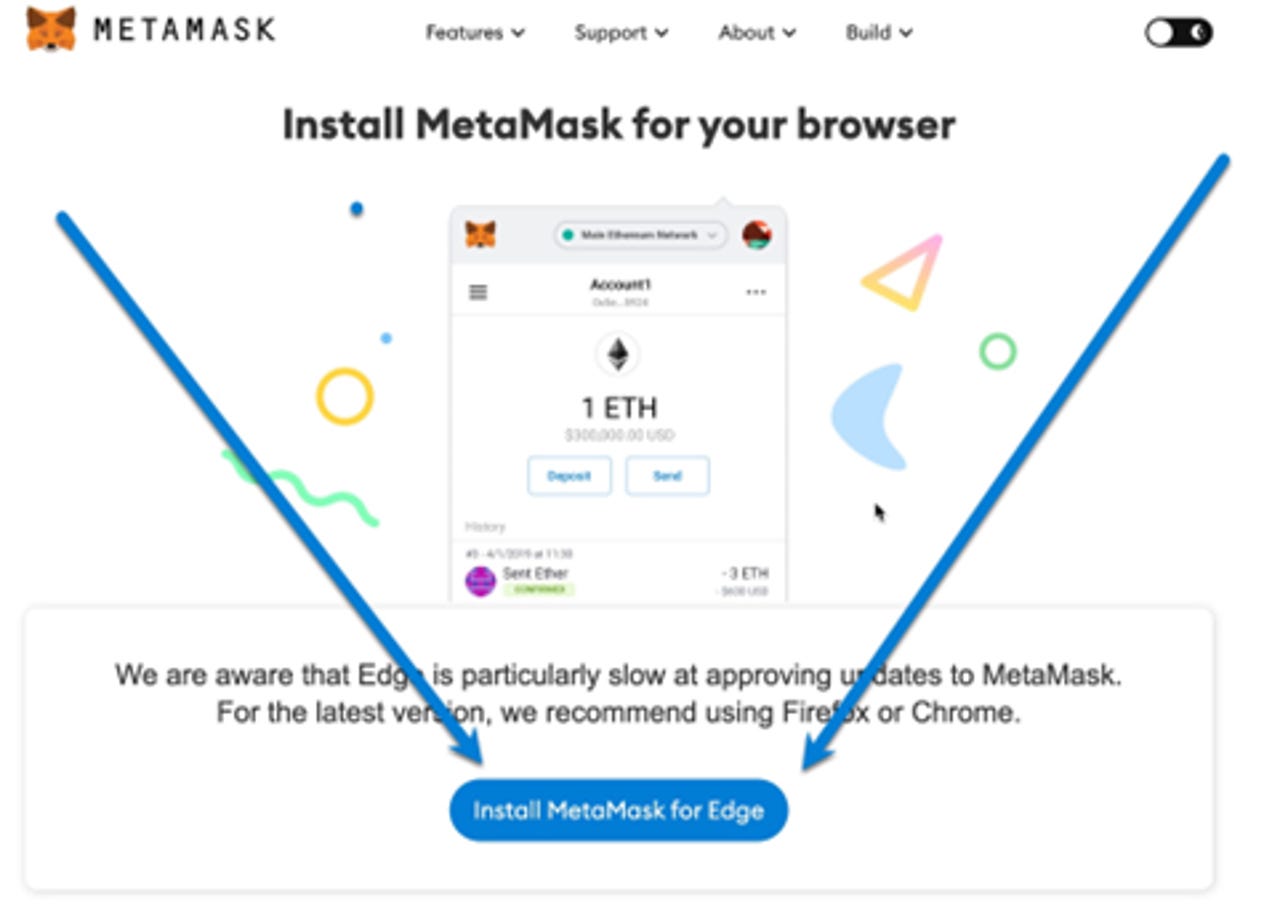
It will open the Edge Add-Ons page. Click Get to install and add the extension.

The extension is added to your browser.

Let's continue by selecting the MetaMask extension and choosing Get Started.

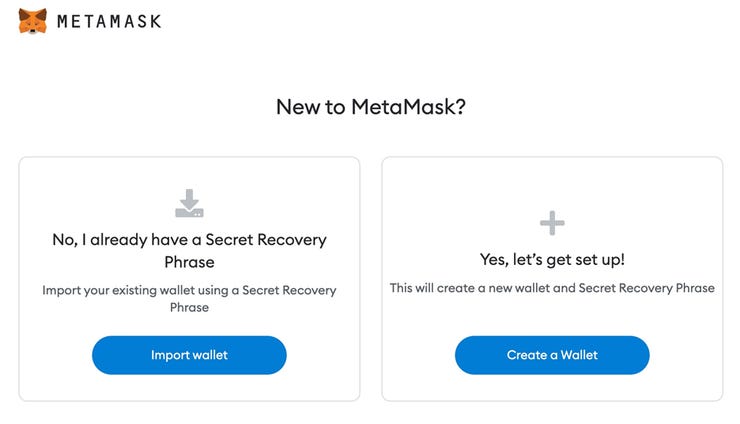
Next, choose Create a Wallet. This will create our hot wallet, which is connected to the internet and always available.
Agree to the Terms of Use to continue and create an eight-character alphanumeric strong password.

Click Create and Next to display your secret recovery phase.
I want to pause here to discuss how important it is to protect your secret recovery phrase, or seed phrase. It's the equivalent to handing someone your debit card and PIN number. You would never do this. Someone can have your debit card, but without your PIN number, they have no access. And just like someone having your PIN, someone with access to your secret recovery phase can import your wallet, and at that point, your password is useless. So to be clear:
- Never -- and I mean NEVER -- reveal your secret recover phase to anyone.
- Never type it in any email.
- Never give it to a support person.
- Never store it online.
- Never -- EVER -- use it unless you are reinstalling MetaMask, and if you do, always make sure you are going to MetaMask.io.
See also: Crypto Coach: How to protect your seed phrase
Once you understand the importance of protecting this secret recovery phrase, click below to reveal.

Write it down in a secure place. For the purposes of this post, I will share it, but never do this when creating a real wallet.

After you write down and store the phrase in a secure manner, click Next and enter the phrase as shown below.

Click Confirm and All Done. You have created a MetaMask wallet.
Let's take a quick look at the user interface so you understand what you're seeing. Click the MetaMask extension.

The MetaMask wallet appears, and you can see your address where your funds will be stored.

If you click the three dots and Account Details, you can change the name of your wallet. I like to call it "Hot." You can also see your QR code and the ETH address. This will be used when you want to send funds to your wallet. Think of it as a home address.

You can also copy your address to clipboard to quickly grab the address when sending funds from an exchange such as Coinbase, Crypto.com or Binance.US.
Now that you have a basic understanding of the interface, we need to delete the entire extension and restore it using your secret recovery phrase as a test. I don't like to send any money to a wallet before doing this. There is nothing worse than trying to restore a wallet and failing. As your Crypto Coach, I recommend you always do the work and test before sending any funds. There's no FDIC insurance in the crypto world. Do the work up front to protect yourself.
To test the restore process, just remove and re-install the extension as shown above. After clicking Get Started, choose Import Wallet, not Create Wallet.
Enter your secure secret phrase and a password and click Import, and you're all set.

If you click on the Account Details, you will see that your wallet has been restored successfully. You are ready to send funds to this address from a crypto exchange.
NOTE: You can follow this same procedure for mobile so you have the same account configured on both mobile and desktop by entering the seed phrase in mobile.