FREE USEFUL RUST
For any questions or to purchase paid optimization, contact our discord server
https://discord.gg/vCTvQCRNMW
Regards USEFUL team ❤️

1. Windows Restore Point (Before applying all settings, it is highly recommended that you make a Windows restore point)
Windows Restore Point
First press WIN+R and write there ( systempropertiesprotection )

Go to System Properties, select drive C, click Configure, Tun on system protection and set it to 10%, click Apply

Click Create, enter any name in English and click Create

Congratulations, now if you have any errors during optimization, you can always revert the system back
Ultimate Performance Power Plan
To avoid problems with the Power plan and to ensure that your system is always running at ultimate performance, you need to turn on ultimate performance
The first step is to copy the code below, and paste it into Windows PowerShell (Admin)
Right-click Start, and run Windows PowerShell (Admin)

Next, we insert the code and press ENTER
powercfg -duplicatescheme e9a42b02-d5df-448d-aa00-03f14749eb61

After that we need to check if our Power Plan has been activated
Press WIN+R and paste it in there powercfg.cpl


Set it to Ultimate and exit Congratulations you have Ultimate performance
Rust Game Settings
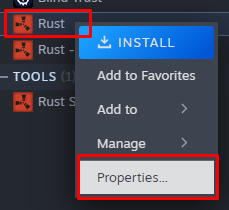
The first step is to look at Rust startup options
-high
Run Rust in priority mode
-malloc=system
Improve graphics quality and slightly increase FPS
-force-d3d11
Rust will use DirectX 11
-force-feature-level-11-0
Run the game in DirectX 11 mode
-nolog
Remove red text on the screen in case of errors
-no-singlethreaded
Enable multithreading
You need to set the settings in Steam

Grass
grass.on False - disable high quality of grass textures.
grass.forceredraw False - disable loading of grass graphic template. grass.displacement False - disable grass movement under the influence of wind.
grass.disp_trail_seconds 1 - reduce the step of grass visibility to 1 second.
Shadows
grass.shadowreceive False - reduce the quality of shadows.
grass.shadowcast False - disable all shadows in the game.
Graphics
gfx.ssaa False - disable edge smoothing of objects.
gfx.bloom False - disable object glow effects.
gfx.grain False - disable structural effects.
gfx.ssao False - disable occlusion effect (creates a feeling of depth and volume).
gfx.tonemap False - disable HDR effect (image processing technology).
Performance
graphics.itemskins False - disable skins before entering the server.
pool.clear_assets - remove unnecessary game resources (once every 30 minutes).
pool.clear_memory - clear RAM (once every 30 minutes).
pool.clear_prefabs - clear unnecessary prefabs (once every 30 minutes).
gc.collect - additionally clear RAM (once every 30 minutes).

Disabling fullscreen optimization

Go to RUST location, right-click on RUSTexe - Properties - Check “Disable fullscreen optimization” - Apply
NVIDIA Control Panel


Congratulations you have the optimal settings
Useful Tweaks Pack
In our Discord you can find a link to download the Tweaks Pack
Download and unzip to your desktop

If you want to restore services, that is the Restore Tweaks folder
Reboot PC, tweaks are activated