How do connect MetaMask to the PancakeSwap and exchange SWP/USDT on PC?
Step-by-step instructions on how to connect your MetaMask wallet to the exchange and exchange SWP/USDT.
Link to SWAP — https://pancakeswap.finance/swap
Contract Address — 0xe0648e1d220f8449769a4557498af6f1211368c4
Step 1. Installing the MetaMask extension
The MetaMack extension is supported in browsers: Google Chrome, Mozilla Firefox, Brave, Edge.We recommend installing MetaMask extension in Chrome browser.
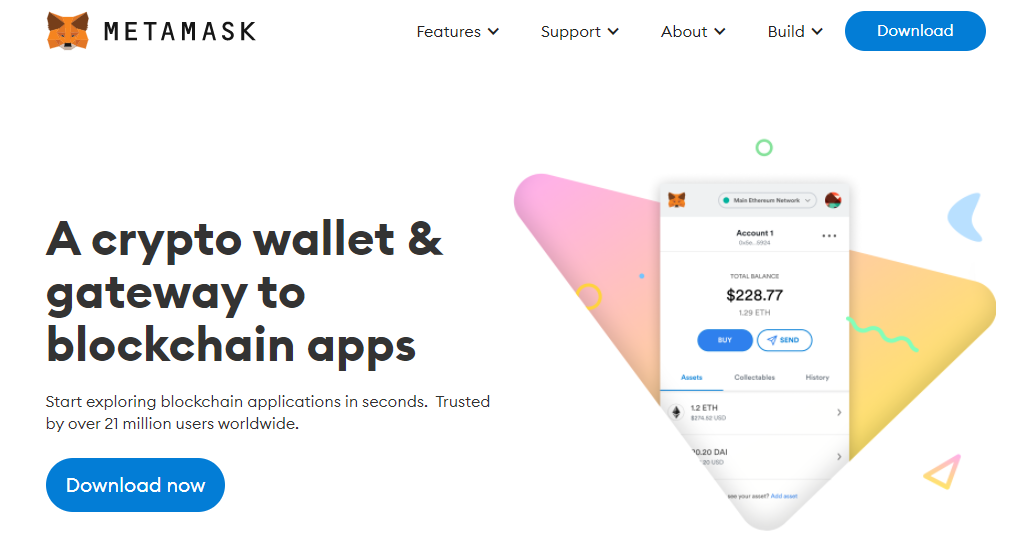
1. Go to the official MetaMask website and click on the "Download now" button.
2. Select Chrome and click the "Install MetaMask for Chrome" button.

3. In the Chrome Extensions online store, click the "Add to Chrome" button.

4. After installation, find MetaMask in the list of extensions and click on it to activate it.

5. In the window that opens, click the "Get started" button.

1. You will have two options - use an existing wallet and enter a secret phrase, or create a new wallet. If you don't have a wallet, select the second option and click Create a Wallet.

2. Think of a password, read the terms of use and click "Create".

3. In the next window, you will see a secret phrase for backing up and restoring your account in case you lose access to it. Save it or write it down in a notebook and keep it in a safe place.

4. Confirm the secret phrase by putting the words in the correct order.

5. After completing these steps, the wallet will be successfully created.

Step 3: Connecting Binance Smart Chain
By default the wallet works on the Ethereum network, but to buy SWP you need to top up your account with BNB token. To do this, create a new network in the wallet.
1. Go to "Settings" on the wallet page.

2. In the settings, select the "Networks" tab and click the "Add a network" button.

3. Fill in the fields with the appropriate data:
- Network name - BSC Mainnet
- New RPC URL - https://bsc-dataseed1.binance.org/
- Chain ID - 56
- Currency Symbol - BNB
- Block Explorer URL - https://bscscan.com/

4. Click the "Save" button to add the BSC Mainnet to the MetaMask wallet.

Step 4. Adding a USDT bep20 token
1. Open MetaMask extension and click on "Import token".
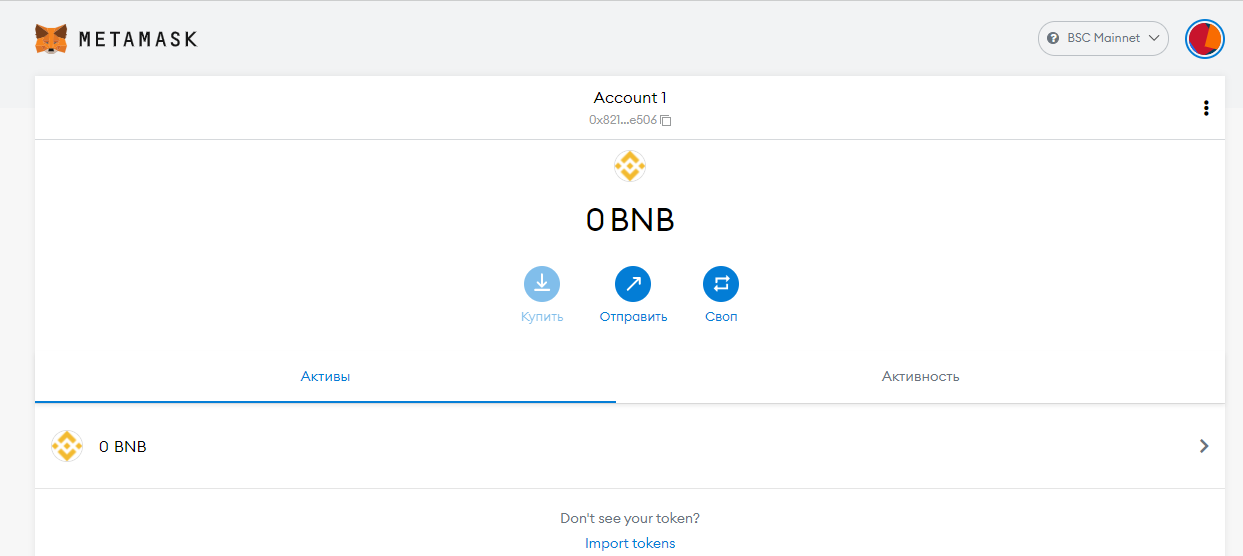
2. Fill in the data in the form
0x55d398326f99059ff775485246999027b3197955

Step 5. Adding SWP to MetaMask
1. Open MetaMask extension and click on "Import token".
2. Fill in the data in the form
0xe0648e1d220f8449769a4557498af6f1211368c4

Step 6. Go to https://pancakeswap.finance/ and connect MetaMask
1. Click on the "Connect Wallet" button in the upper right corner of the screen.

2. In the list of available wallets select "MetaMask".

3. In the modal window that appears, click "Next".

4. In the next window, click the "Connect" button.

Please note! Buying SWP tokens is available in the Binance Smart Chain (BSC) network. Before connecting MetaMask to PancakeSwap, you need to add the BSC network to your wallet.
MetaMask wallet is successfully connected to PancaceSwap!
Step 7. Exchange USDT into SWP
1. In the "Trade" section, select the "Exchange" item.

2. Fill out the token exchange form.
In the top field, select the "USDT" token. To do this, click on the token ticker and enter "USDT" in the search box.

4. In the second field, also click on the token ticker and in the search box, enter the SWP token address — 0xe0648e1d220f8449769a4557498af6f1211368c4

5. Click on the settings in the exchange window.

6. For a successful exchange, set the allowable slippage - 1% on $1000
Close this modal window, enter in the form the amount of USDT you want to exchange to SWP, and click on the "Exchange" button.

Обращаем ваше внимание! Для проведения транзакций, на счете в кошельке должно быть дополнительное количество BNB, поскольку все операции производятся в сети Binance Smart Chain и комиссия за любые транзакции будет сниматься именно с этого счета.