TONxDAO / DAO REGISTRATION GUIDE

Here’s a detailed step-by-step guide on how to register your DAO. The process takes just a few minutes, but it’s one of the key criteria for receiving the airdrop
Before you start, we highly recommend checking out this article:
🔹 FULL BREAKDOWN OF THE UPDATE
If you have any questions along the way, don’t hesitate to ask in the official chat – our moderators are always here to help!
1️⃣ STARTING DAO REGISTRATION
First, make sure that all members of your DAO have their TON wallets connected. Otherwise, you won’t be able to proceed with the registration. The registration must be done using the same wallet. Any DAO member can initiate the registration process by clicking the blue “Register a DAO” button

2️⃣ REVIEW THE RULES
Read through the information and check the box to agree to the terms

3️⃣ FILL IN DAO DETAILS FOR THE CHARTER
Choose a name and write a description for your DAO. You can be as creative as you want – just make sure the name and description align with the potential activities of your organization
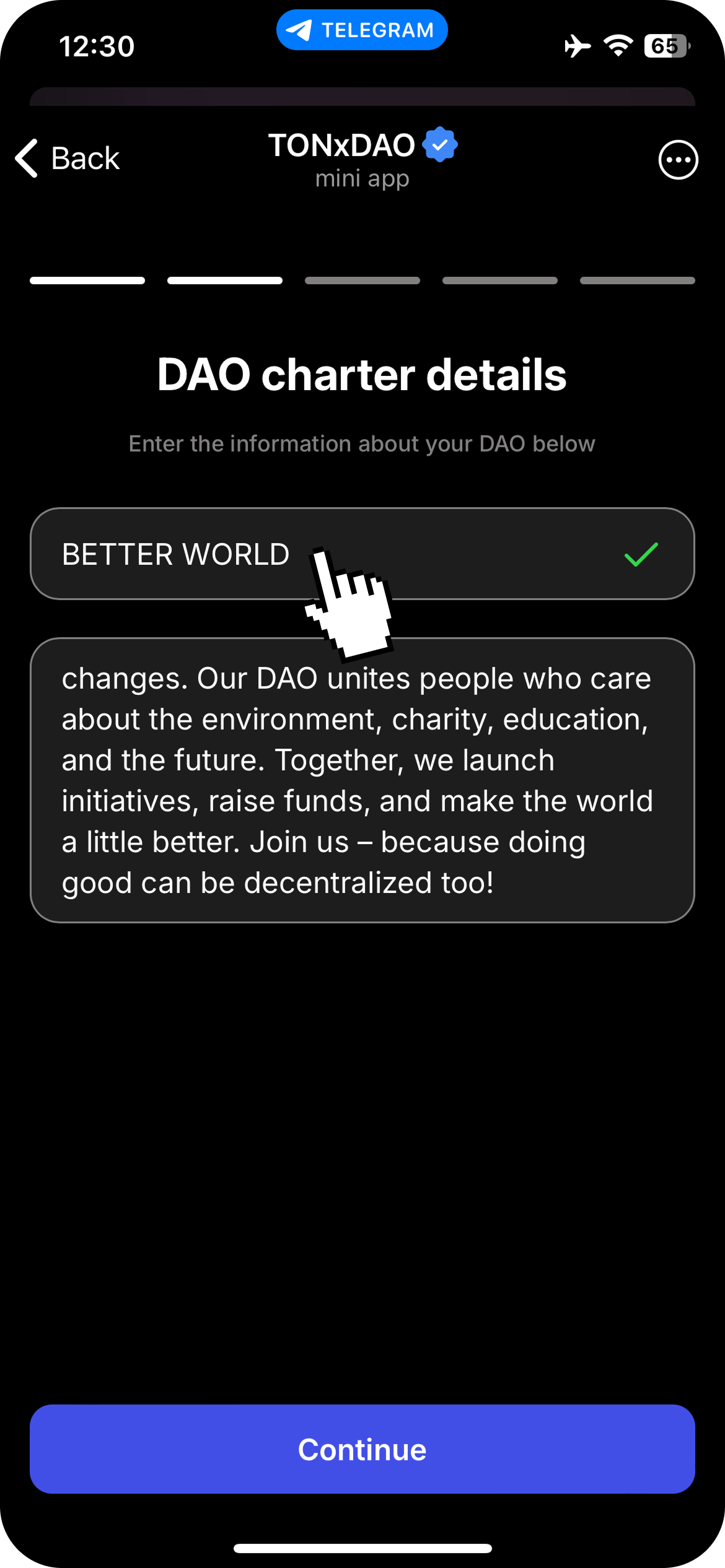
4️⃣ CHOOSE YOUR DAO TYPE
At this stage, you need to specify the purpose of your DAO. Review the available DAO types and their descriptions in the list. Select the one that best aligns with your organization’s activities
After choosing a DAO type, a pop-up message will appear, warning you that the purpose of your DAO cannot be changed after registration. Click “OK” to confirm and proceed

5️⃣ CHOOSE A REPRESENTATIVE FOR EXTERNAL COMMUNICATIONS
Assign a DAO member responsible for external communications. If needed, you can change this representative later through a vote

6️⃣ REVIEW YOUR DAO CHARTER AND START THE VOTE
Carefully read through the final charter of your Digital Autonomous Organization

Make sure that the name, description, DAO type, and the member responsible for external communications are all correctly specified

Once everything is set, click the blue “Submit for Voting” button to initiate the vote on your DAO registration and charter adoption
7️⃣ VOTE FOR DAO REGISTRATION
The voting process has started and will last exactly 24 hours. All members must cast their votes within this timeframe, otherwise, the vote will be canceled

Now, you need to vote in favor of registering your DAO. To do this, select the “Yes, I agree” option and slide the arrow to the right to confirm your vote
Below, you’ll be able to see the real-time voting results of each DAO member (“Yes” or “No”)

8️⃣ PREPARING TO SIGN THE CHARTER
Once you have voted in favor, a window will appear prompting you to sign your DAO charter using your TON wallet. All members must sign the charter within the allotted 24 hours, or the process will be canceled.
🚨 IMPORTANT: You must use the same wallet that you previously connected to TONxDAO, or the signature won’t work.
Review the step-by-step guide on signing the charter in our app and click the blue “Sign” button to proceed

9️⃣ CONNECT YOUR TON WALLET TO ETHSIGN
A separate window will open with the EthSign page — a digital signature service that verifies who has signed the document on the blockchain. This is the service we will use to sign our DAO charter.
To connect your TON wallet to EthSign, click the “Ton Connect” button

In the pop-up window, you will see several TON wallet options. Find and select the same wallet that you originally used when first connecting to TONxDAO. For demonstration purposes in this guide, we’ll be using Tonkeeper (but you can use any other supported wallet)

After that, your selected wallet app will open with a request to sign in to the EthSign service. Confirm the request and connect your wallet

🔟 SIGNING THE CHARTER
Once your wallet is connected to the service, a window will open displaying your DAO Charter, pre-filled with the information you provided earlier

You can review the contents of the charter once again. At the very end, you’ll find details about all DAO members, including their Telegram ID, usernames, wallet addresses, and signatures (if they have already signed the charter)
Click the orange “Jump to the first Field” button at the bottom of the screen to open the signature field with your name

In the “Type” field, enter your name to sign the charter. Then, click the orange “Insert Signature” button to add your signature to the document

Your digital signature has been added to the document. Click the green “Complete Contract” button at the bottom of the screen to finalize the charter signing using your TON wallet

After that, your TON wallet app will open again with a request to sign in to EthSign and reconnect your wallet. Click “Connect Wallet” and complete the connection

Next, the EthSign window will reopen with a green pop-up notification confirming that the charter has been successfully signed. Click “Close” to dismiss the notification and return to the original TONxDAO tab

Congratulations – you have successfully signed your DAO Charter!
Now, you just need to wait for the remaining members to complete their signatures. You can track their progress in real time on the charter signing page in TONxDAO

1️⃣1️⃣ YOUR DAO IS OFFICIALLY REGISTERED 🎉
Once all members have signed the charter, your DAO is officially registered! This is what its main page looks like. You now meet the requirements for the airdrop. Also, don’t forget to visit the “Tasks” section to claim your 1,000,000 $DAO registration bonus!

Very soon, we will publish an article with a detailed overview and instructions on how to use all the DAO features currently available in the TONxDAO app. Stay tuned! ;)